If your Creality printer shows "No files found", your USB drive's GPT partition table is likely the culprit — here's how to fix it.
The Hidden Reason Your Printer Ignores Your USB Drive
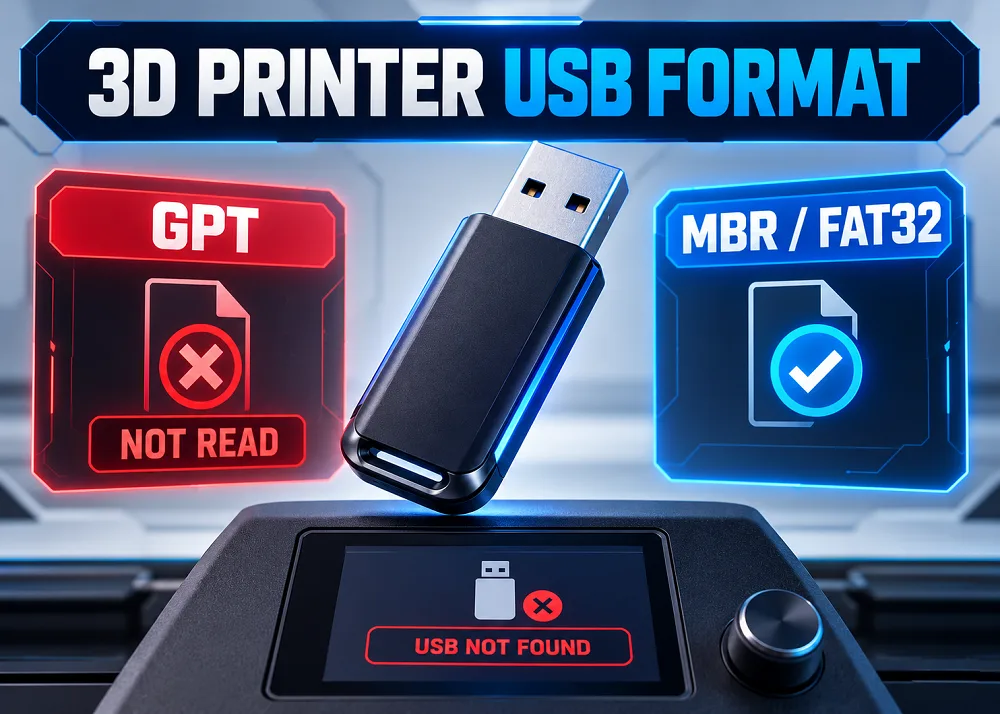
You load a brand-new USB drive with G-code files, plug it into your Creality printer, and see a blank screen or a "No files found" message — even though your PC reads the drive without issue. The cause is almost always a partition table mismatch. Most modern USB drives ship pre-formatted with GPT (GUID Partition Table), a scheme built for contemporary operating systems. Your printer, however, expects the older MBR (Master Boot Record) layout, also called the MSDOS partition scheme.
Why 3D Printers Can't Handle GPT
Creality printers — like most FDM machines — run on embedded microcontrollers with tightly constrained resources. These chips prioritise motion control, temperature management, and real-time coordination over complex file-system parsing. GPT uses 64-bit addressing, redundant partition headers, and integrity checksums that simply exceed what the firmware can process. MBR, by contrast, relies on a compact 512-byte structure that is trivial for low-power hardware to read. The Marlin firmware used across many Creality models further limits support to FAT16 or FAT32 via the FatFS library — exFAT and NTFS are not recognised.
Creality Model Requirements at a Glance
- Ender series / Ender 3 V3: MBR + FAT32, up to 32 GB, USB 2.0 recommended
- K1C: MBR + FAT32, up to 32 GB, 4 096-byte allocation units required
- K2 Plus: MBR + FAT32, up to 128 GB, includes a built-in formatting option
- Ender 5 series: MBR + FAT32, up to 16 GB, G-code files must sit in the root directory
How to Convert GPT to MBR on Windows
Back up all files first, then open Command Prompt as Administrator and run diskpart. Use list disk to identify your USB drive's disk number, then run select disk X, clean, and convert mbr in sequence. Once complete, reformat the drive as FAT32 using Windows Explorer or Disk Management. Community reports consistently show this single step resolves the vast majority of USB recognition failures on Creality and other FDM printers.
Quick Tips for Reliable USB Printing
- Keep file names short — avoid spaces, special characters, and names longer than 8 characters where possible.
- Place G-code files directly in the root directory, not inside folders.
- Stick to drives 32 GB or smaller for broadest compatibility across Creality models.
- If reformatting a drive larger than 32 GB to FAT32, use a third-party tool such as a partition manager, since Windows Explorer caps FAT32 formatting at 32 GB.
Available at all 3 Print My Design stores and online with nationwide delivery.