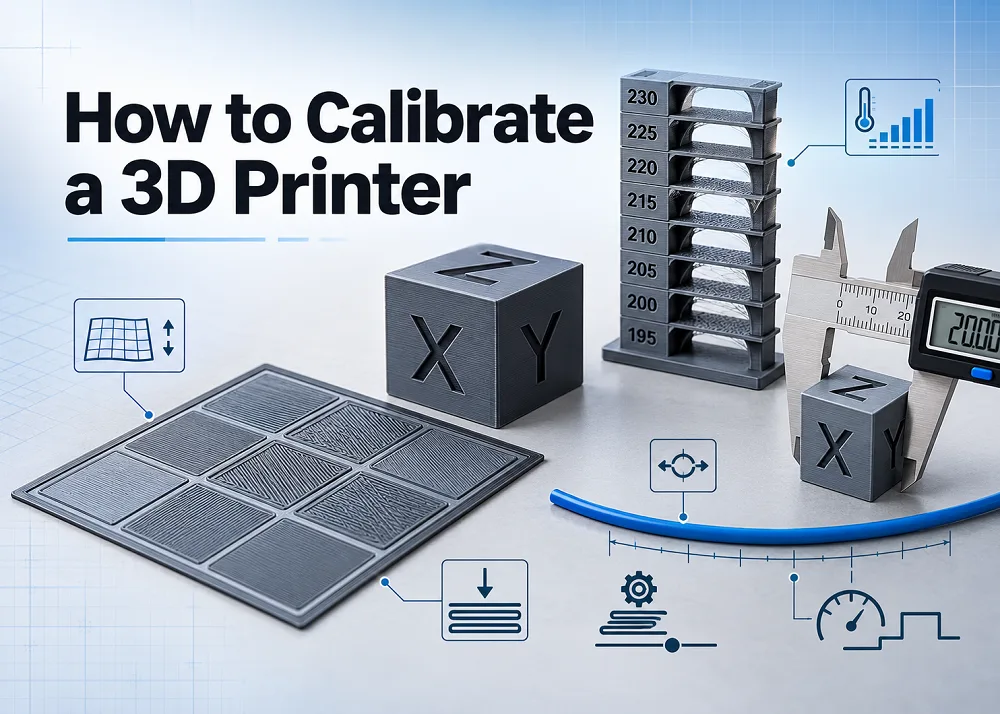
Master every essential 3D printer calibration step — from bed leveling to pressure advance — for consistently great prints.
Why Calibration Is Non-Negotiable
Most print failures are not hardware defects — they are calibration issues. A Z-offset error as small as 0.1 mm cascades through every layer above it, and a flow rate set just 5% too high deposits excess material across the entire print. Proper calibration directly controls dimensional accuracy, first-layer adhesion, surface quality, and layer bonding strength.
Tools to Have Ready
- Isopropyl alcohol (IPA) — clean the build plate before every session to remove oils and debris
- Digital calipers — essential for measuring filament movement and wall thickness accurately
- Slicer software — default profiles are a starting point, not a finished calibration
- A dry, known filament spool — moisture-damaged filament skews results
- 30–60 minutes — each step needs a test print, a measurement, and an adjustment
The Six Calibration Steps in Order
1. Bed Leveling — the foundation of every good print. An uneven bed causes inconsistent first layers that no other setting can fix. Modern printers with auto bed leveling use a probe to map the surface (typically a 3×3, 5×5, or 7×7 grid) and compensate automatically during printing.
2. Z-Offset — fine-tunes the exact gap between the nozzle and the bed surface for a perfect first layer.
3. E-Step Calibration — ensures the extruder moves precisely the amount of filament commanded by the firmware.
4. Flow Rate — adjusts how much material is actually deposited per line, preventing over- or under-extrusion.
5. Temperature Calibration — finds the optimal printing temperature for your specific filament brand and type.
6. Pressure Advance / Linear Advance — reduces corner bulging and improves detail by compensating for filament pressure in the nozzle.
Calibration Is an Ongoing Process
Calibration is not a one-time setup. Environmental changes, filament swaps, and hardware wear all affect print quality over time. Running through these steps regularly keeps your printer performing at its best.
Available at all 3 Print My Design stores and online with nationwide delivery.